Gallery Guide
How to open
Open Gallery from the VSA sidebar.
| 🏠 Document Top | ⚖️ Terms of Service | 🔒 Privacy Policy |
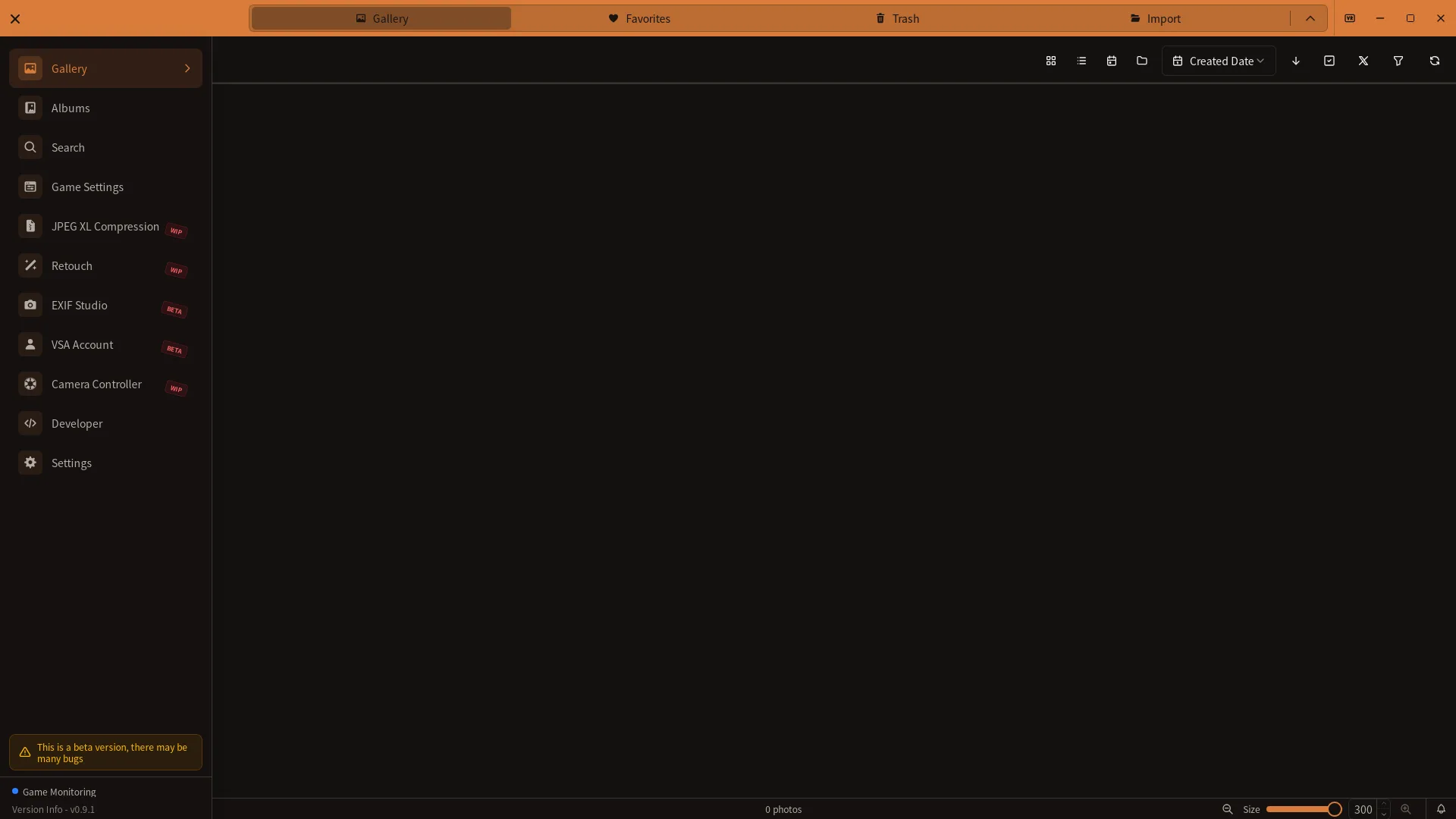
The gallery screen allows you to view imported photos in a list format, check detailed information, and perform operations such as adding favorites.
Note (Integral parameters) Integral is supported, but some camera parameter values may not be recorded or displayed correctly.
Display Modes
The gallery has three display modes.
Grid View
Displays photos in a thumbnail grid format.
- Easy to visually check images
- Adjustable thumbnail size (50px-300px)
- Date-based grouping (when thumbnail size is small)
Table View
Displays photos in a list format.
- View file name, capture time, world name at a glance
- Click column headers to sort
- Resizable columns
Switch display modes using the toolbar button.
Group View
Groups photos by capture date. Like grid view, the thumbnail size can be adjusted.
Folder View
Select the folder icon in the toolbar to switch to Folder View. Open a folder to browse its child folders and photos stored directly in that folder. Use the breadcrumb to move between levels, or search for folders by name or path.
Sorting
You can sort by the following items.
| Sort Item | Description |
|---|---|
| Created Date | File creation date |
| World Name | VRChat world name |
| File Name | Alphabetical order of file names |
| File Size | File size |
| Capture Time | Photo capture time (descending by default) |
How to sort:
- Select an item from the sort dropdown in the toolbar
- Toggle ascending/descending with the arrow button
- In table view, you can also click column headers to sort
Zoom Controls
You can change the thumbnail size in grid view.
Keyboard Shortcuts
| Action | Shortcut |
|---|---|
| Zoom In | Ctrl + = |
| Zoom Out | Ctrl + - |
Mouse Controls
Ctrl+ Mouse Wheel: Zoom centered on mouse position
Slider
You can also adjust the size using the slider in the toolbar.
Image Detail Sidebar
Click a photo to display a sidebar on the right showing detailed information.
Displayed Information
Basic Info:
- Preview image (click to open in default app)
- File path
- File hash
VRChat Info:
- World name (copyable)
- Photographer name
- Capture time
- List of users in the instance
Camera Info:
- Camera type (VirtualLens2, Integral, FishEye, TelePortraitLens, or Normal Camera)
- VirtualLens2 parameters (Aperture, FocalLength, Exposure, etc.)
- Integral parameters (ShutterSpeed, BokehShape, etc.)
- Stored TelePortraitLens snapshot values when available
For Normal Camera photos, VSA records and displays only parameters it can confirm over OSC at capture time. Unconfirmed values are not included, and available fields depend on what OSC provides.
For a Normal Camera photo registered locally with its PNG file present, open Correct Focus mode under Normal Camera in the photo details, choose a Focus mode, and click Save. The selection is written to the photo’s PNG, and the photo details refresh after a successful save. The existing screenshot may not show this control.
Camera information is displayed in an accordion format and can be expanded by clicking.
Image Detail Sidebar Buttons
The following buttons are arranged at the top of the detail sidebar:
QR Code Read Button
A “Read QR Code” button displays above the preview image in the detail sidebar.
Features:
- Auto-detect QR codes in images
- Support for multiple QR codes (detects all in image)
- Detected QR codes display with overlay on image
How to Use:
- Click photo to open detail sidebar
- Click “Read QR Code” button
- QR codes auto-detect
- Box displays on detected QR code
Processing Detected Results:
- URL: Click “Open in Browser” to open in browser
- Text: Click “Copy to Clipboard” to copy content
- Multiple code detection displays all codes
Favorites
You can mark photos as favorites.
How to Use
- Click the star icon on the thumbnail
- Click the star button in the detail sidebar
- Click the star icon in table view
Favorite status is saved locally and persists after restarting the app.
Deleting Images
You can move unwanted images to the trash.
- Click an image to open the detail sidebar
- Click the trash icon
- Select “Delete” in the confirmation dialog
Deleted images are moved to VSA’s trash. Restore them from the trash or permanently delete them in selection mode.
User Search
Search for photos containing specific users from the user list displayed in the detail sidebar.
Click Username to Search
Steps:
- Click photo to open detail sidebar
- Click username from “List of users in the instance” section
- Auto-navigate to user search screen
- Photos containing that user display in list
AND Search with Multiple Users
Search multiple users simultaneously to display only photos with all users.
See Person Search Guide for details.
Bulk Selection Feature
Select multiple photos simultaneously to add favorites, add to albums, or move photos to trash.
Start Selection Mode
Steps:
- Open Gallery tab
- Click “Selection Mode” button in toolbar
- Bulk selection mode enables
- Toolbar display changes showing selection operation buttons
Photo Selection and Deselection
Selection Method:
- Grid view: Click thumbnail to select
- Table view: Click row to select
- Click selected photos again to deselect
Select All:
- Click “Select All” button in toolbar
- All photos on screen select
Deselect:
- When all photos are selected, click “Select All” again
- Or click “Cancel” to leave selection mode
- All selections clear
Selection Display
Selected photos show:
- Grid view: Checkmark on thumbnail
- Table view: Row highlight, checkbox on left
- Toolbar shows “n selected”
Bulk Operations
With multiple photos selected, perform these operations:
Add Favorites in Bulk
Steps:
- Select multiple photos
- Click “Add to Favorites” button in toolbar
- All selected photos add to favorites
Move to Trash in Bulk
Steps:
- Select multiple photos
- Click “Move to Trash” button in toolbar
- Click “Move” in confirmation dialog
- All selected photos move to trash
Add to an Album in Bulk
- Select multiple photos
- Click “Add to Album” in the toolbar
- Choose the destination album
Up to 200 photos can be added at once.
Exit Selection Mode
Steps:
- Click “End Selection Mode” button in toolbar again
- Or click “Cancel” button
- Selection mode ends, all selections clear
Trash Tab
In the trash tab, confirm deleted photos, restore them, or permanently delete.
Access Trash Tab
Steps:
- Check tab menu above Gallery
- Four tabs display: “Gallery”, “Favorites”, “Trash”, and “Import”
- Click “Trash”
Trash View Features
Trash view uses a thumbnail grid. Each card shows the world name and days remaining before automatic deletion. More cards load as you scroll.
Deleted Photo List:
- Photos are listed by most recent deletion time
- Check the world name and days remaining before automatic deletion
- Select cards for bulk actions
Restore Feature
Restore deleted photos to gallery.
Steps:
- Open the Trash tab
- Click Selection Mode
- Select the photo cards to restore
- Click Restore in the toolbar
- Confirm the action
- Photos return to the gallery
Bulk Restore:
- Select multiple photos
- Click “Restore” button in toolbar
- All selected photos restore
Permanently Delete Feature
Delete the photo file, thumbnail, and related data from VSA’s trash. This cannot be undone.
Steps:
- Open the Trash tab and click Selection Mode
- Select the photo cards to delete
- Click Delete in the toolbar
- Confirm the action
Bulk Permanent Delete:
- Select multiple photos
- Click Delete in the toolbar
- Confirm the action
Notes
Retention:
- Photos moved to the app trash are automatically deleted after 7 days
About Permanent Deletion:
- VSA removes the photo data from its trash, so it cannot be restored
- Back up important photos beforehand
Keyboard Shortcuts
| Action | Shortcut |
|---|---|
| Zoom In | Ctrl + = |
| Zoom Out | Ctrl + - |
| Fullscreen | F11 |
Toolbar Operations
The toolbar is displayed at the top of the screen.
- Move mouse to the top of the screen (within 100px) to show
- Expand/collapse button to pin display
- Reload button to refresh the image list
Performance
The gallery performs smoothly even with large numbers of images thanks to virtualization technology.
- Only renders images visible on screen
- Lazy loading of thumbnails
Filters
Use the filter button in the toolbar to filter by capture date range, metadata presence, world name, username, or folder. Enter multiple usernames separated by commas for an AND search. Under Folders, search by folder name or path and select one or more folders; photos in the selected folders and their descendants are included. Use Reset in the filter menu to clear the conditions.